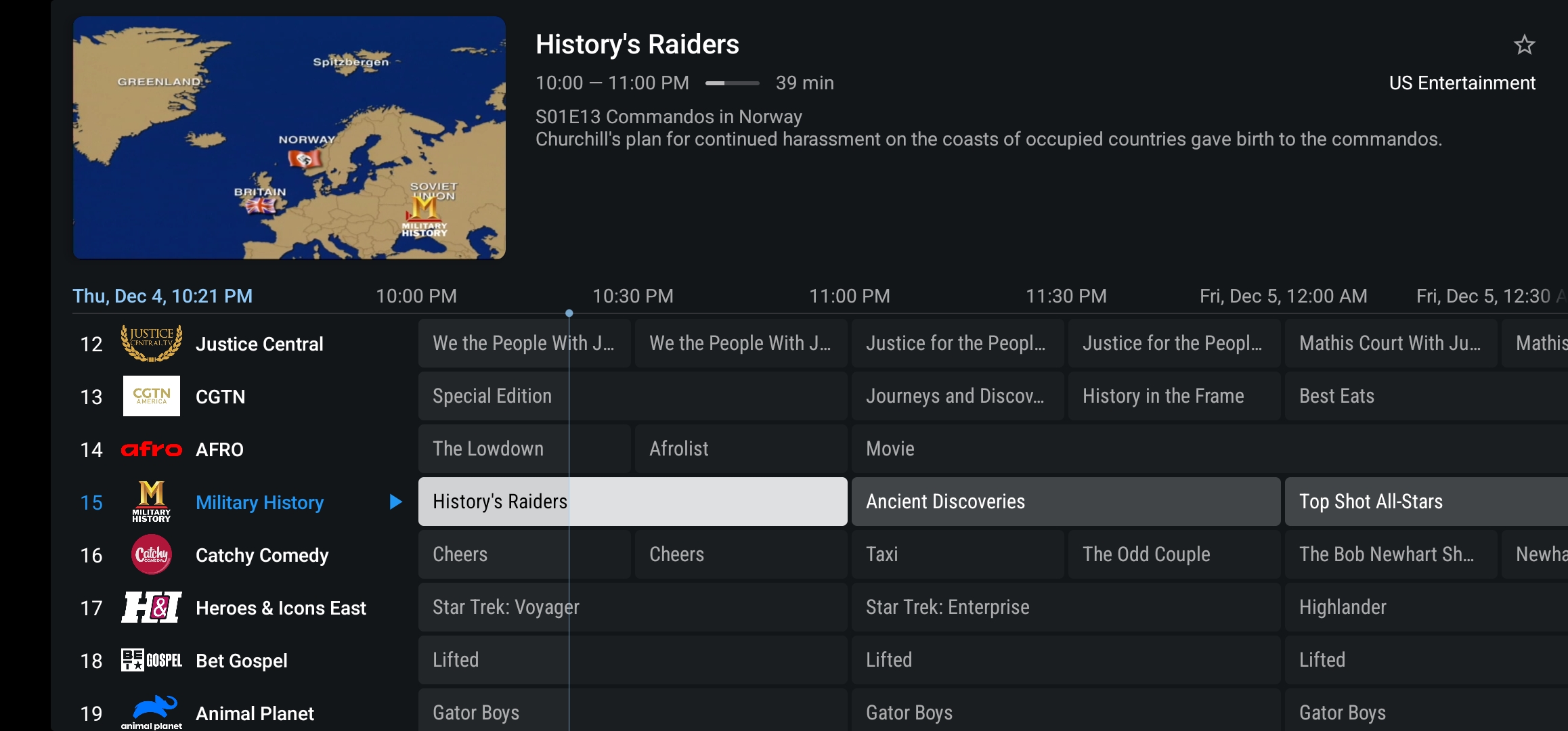
Android TV Device install Instructions
APP Download Urls:
MTB : MyTvBoss.net/app (easy to use app)
TiviMTB : MyTvBoss.net/tivimtb (Full Featured app)

Backup Download Urls:
MTB - http://tvb.one/mtb.apk
TiviMTB - http://tvb.one/tivimtb.apk
In this example we are using a Walmart Onn 4K Plus, but this process will work for any device running Google TV OS (including Smart TVs).
1. Enable Developer Options — click the gear icon (top right) that says All Settings.
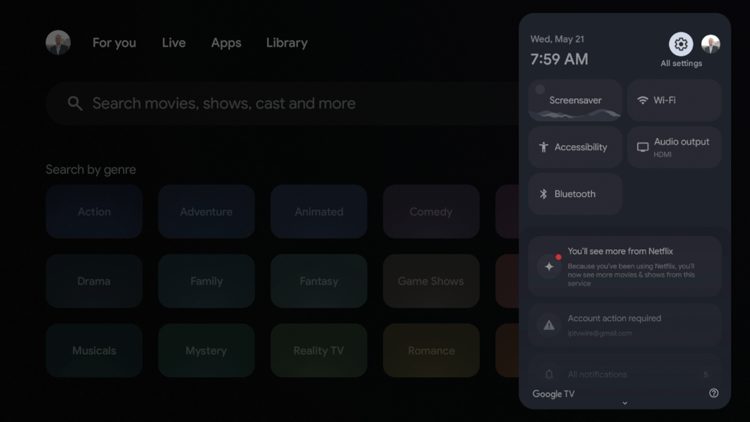
2. Scroll down and click System.
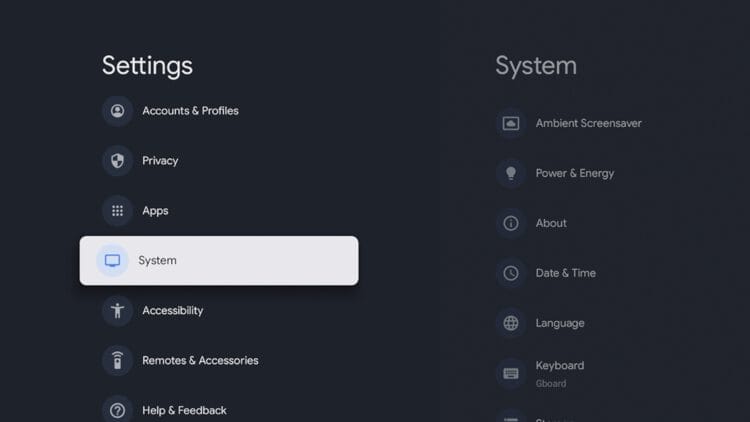
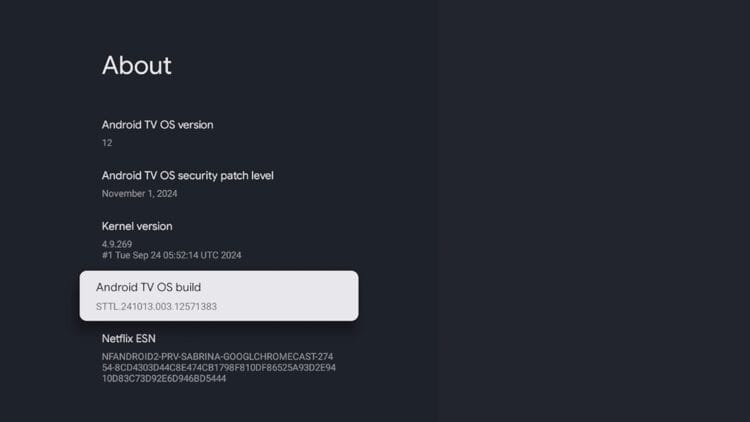
3. Click About.
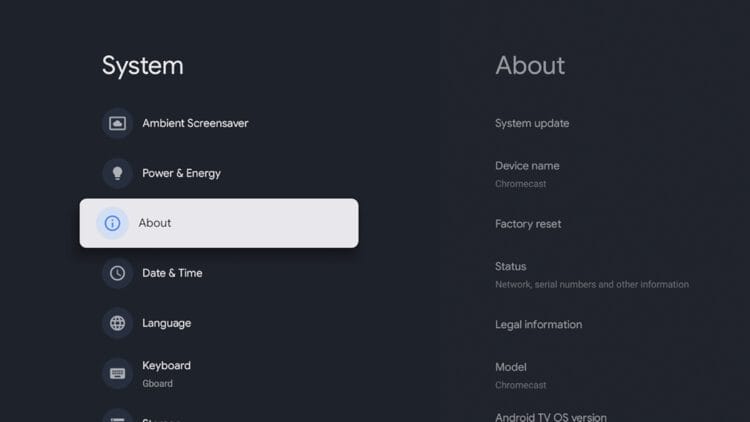
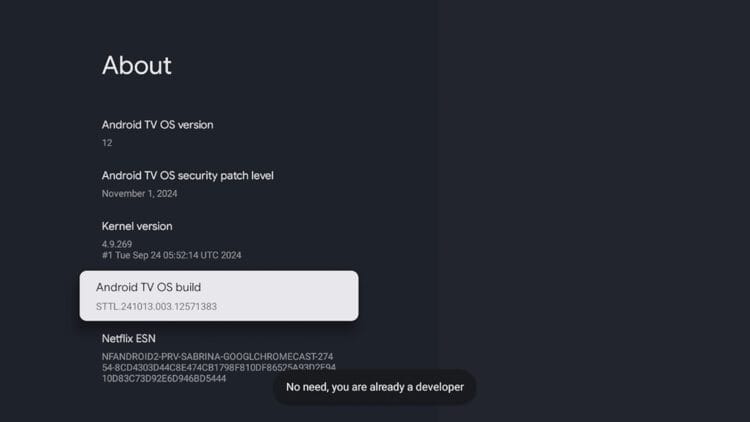
4. Scroll down and click Android TV OS Build about 7 times to enable developer options.
5. You should see: "No need, you are already a developer."
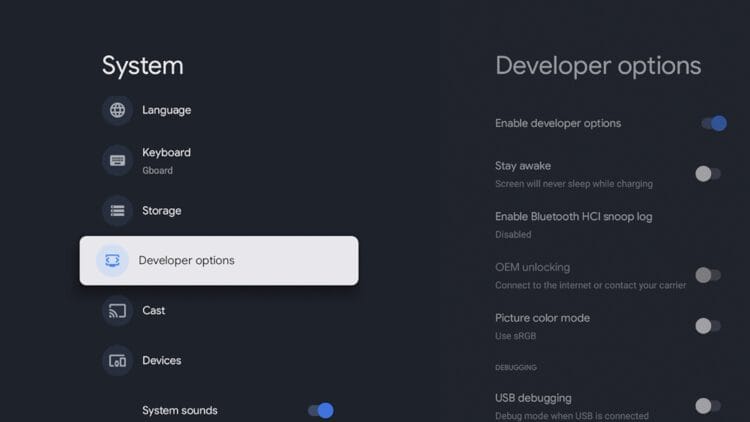
6. Press back on your remote — Developer Options will now appear under the System menu.
7. Now install the Downloader app. From the home screen, hover over the search icon.
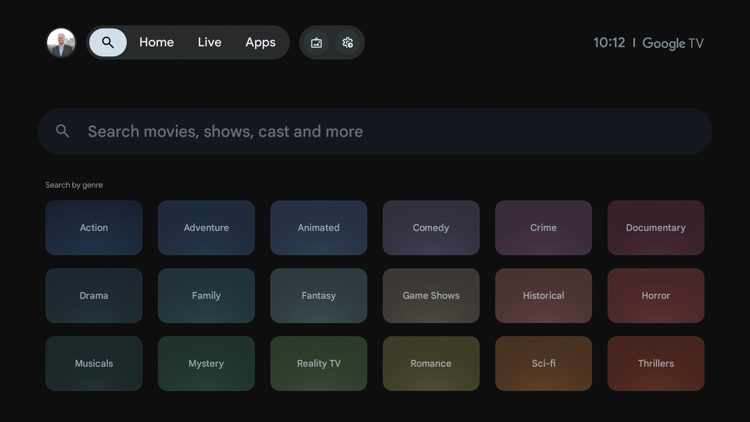
8. Search for downloader and click the search icon.
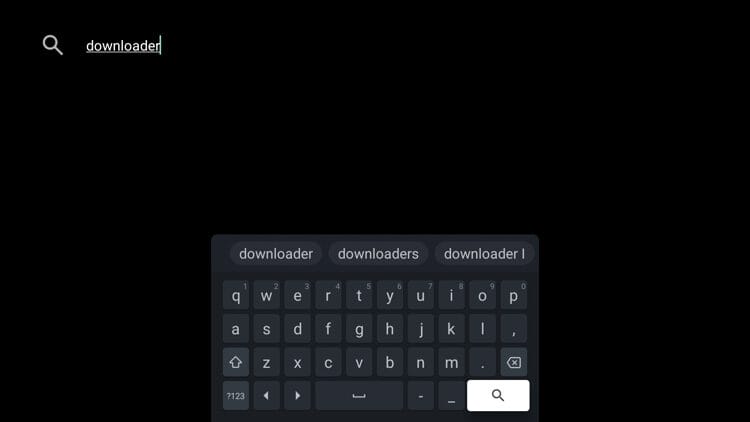
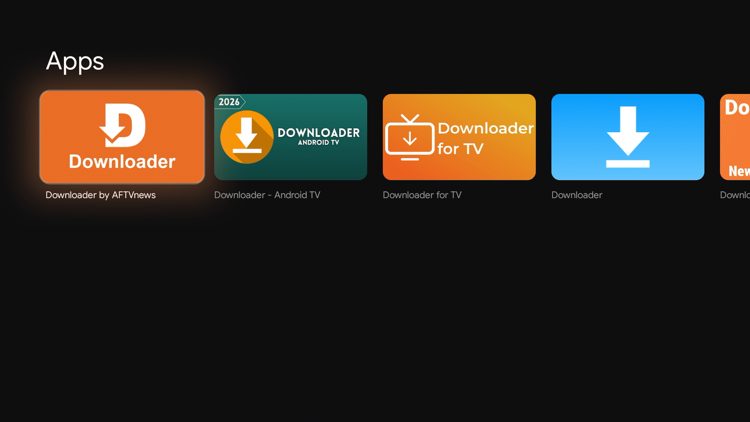
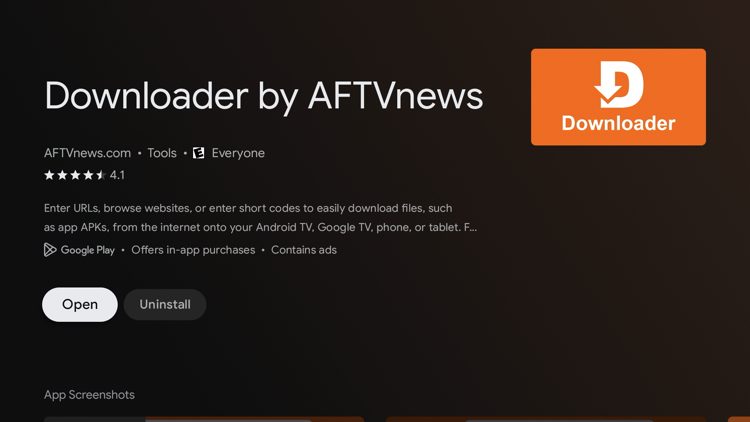
9. Select the official Downloader by AFTVnews under Apps.
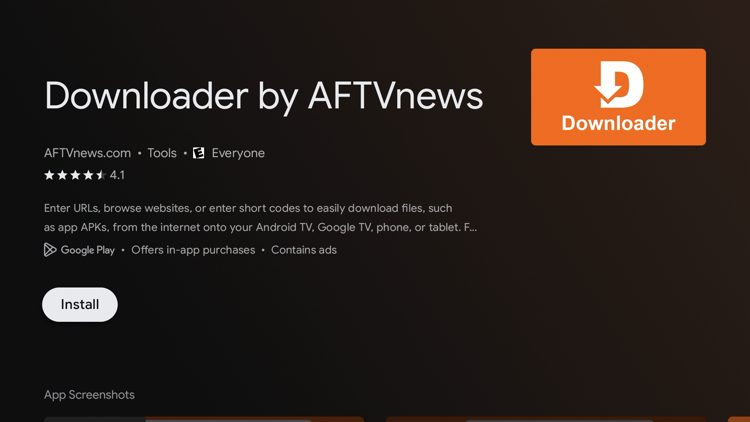
10. Click Install.
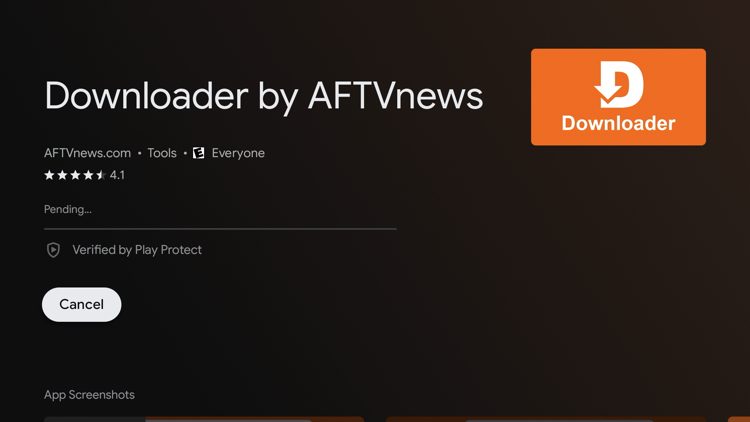
11. Wait for Downloader to finish installing.
12. Click Open.
13. Click OK on the Downloader welcome message.
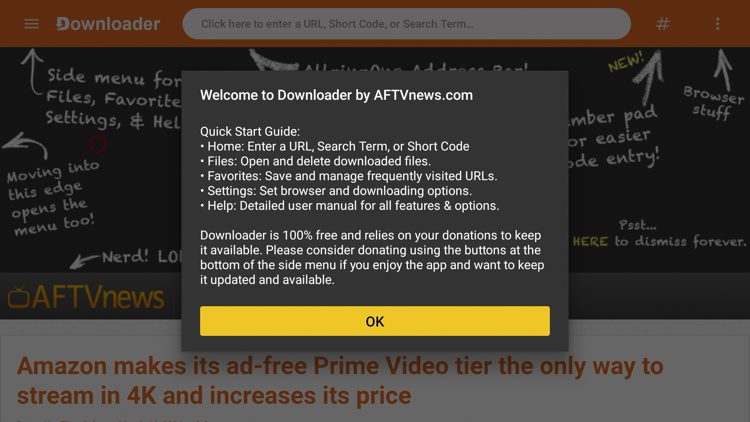
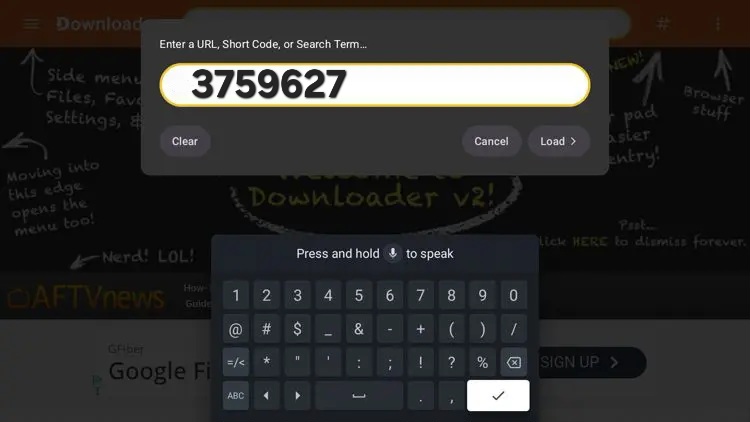
14. Click the search box at the top.

15. Enter code 3759627 (or the download url for the app you want to install) and click the checkmark icon.
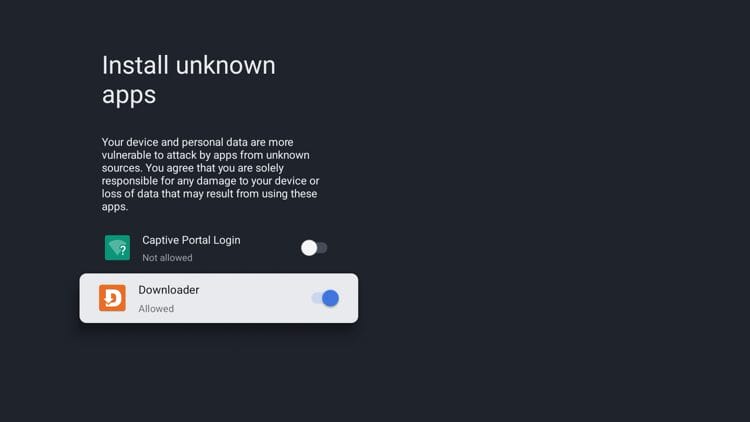
18. When a message appears, click Settings.
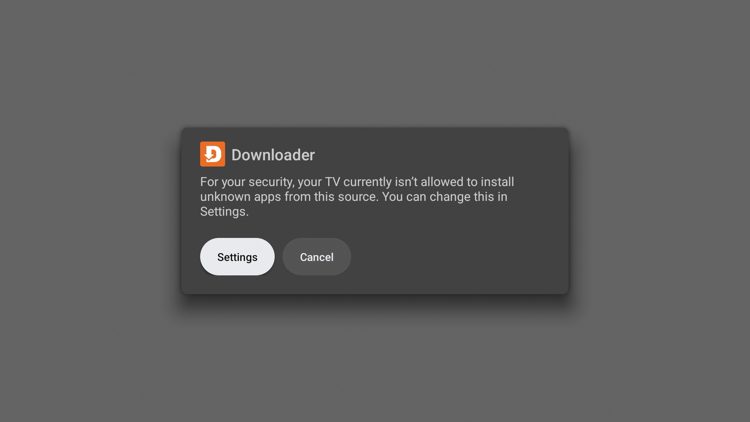
19. Toggle Downloader on to allow unknown apps.
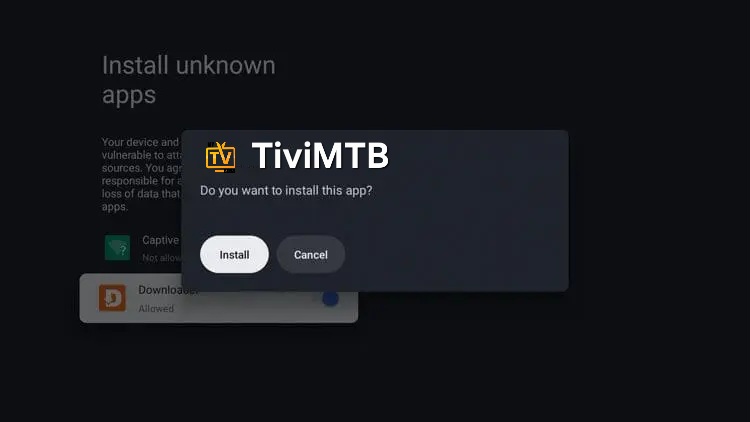
20. Click Install.
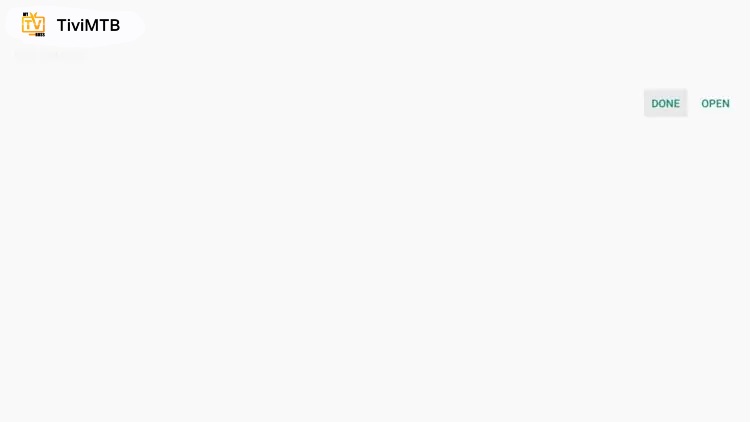
21. Click Done.
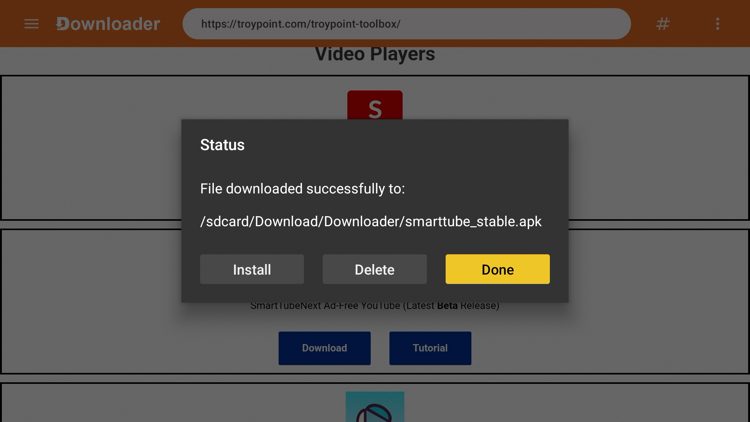
22. Press back on your remote, then click Delete or Done.
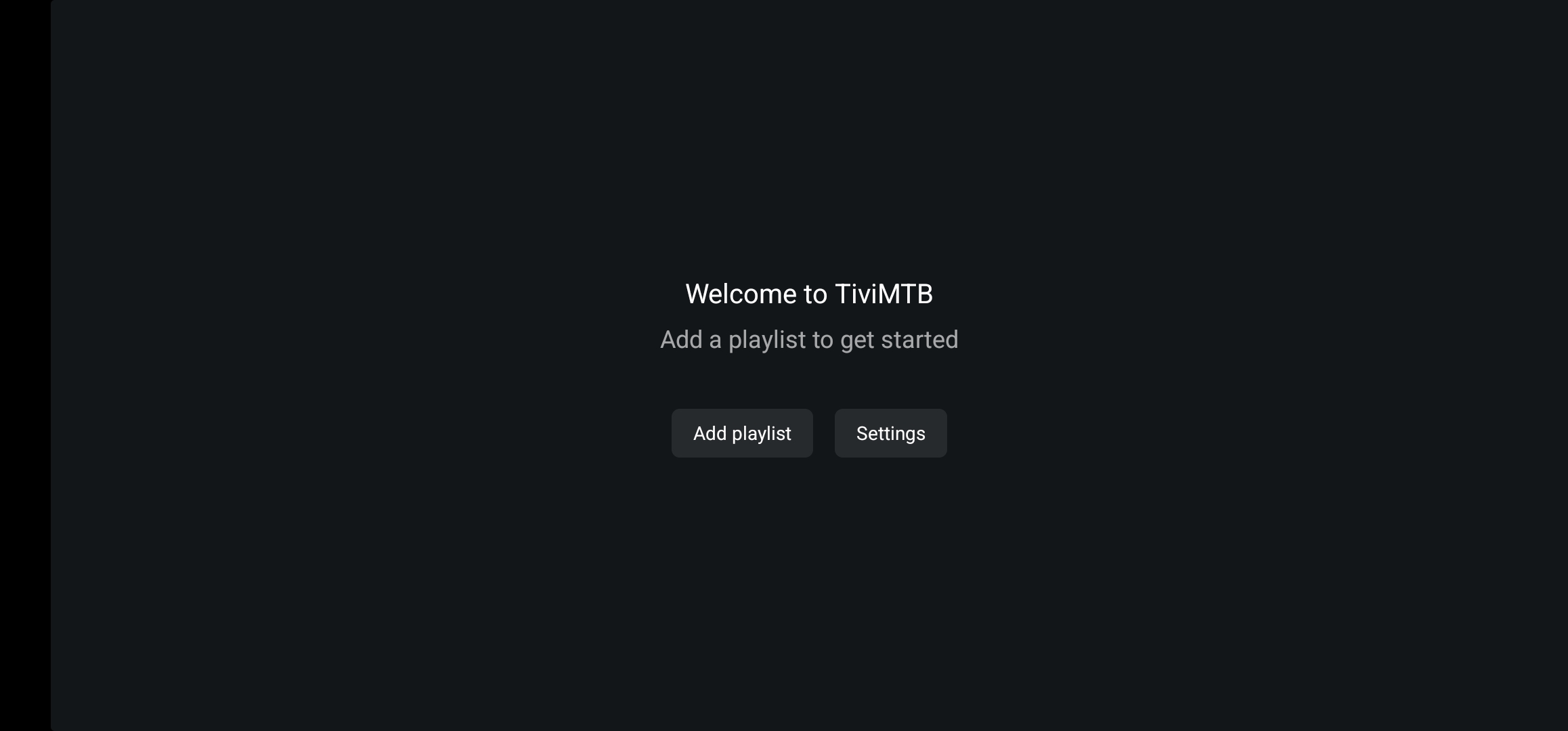
23. Launch TiviMTB and click Add Playlist.
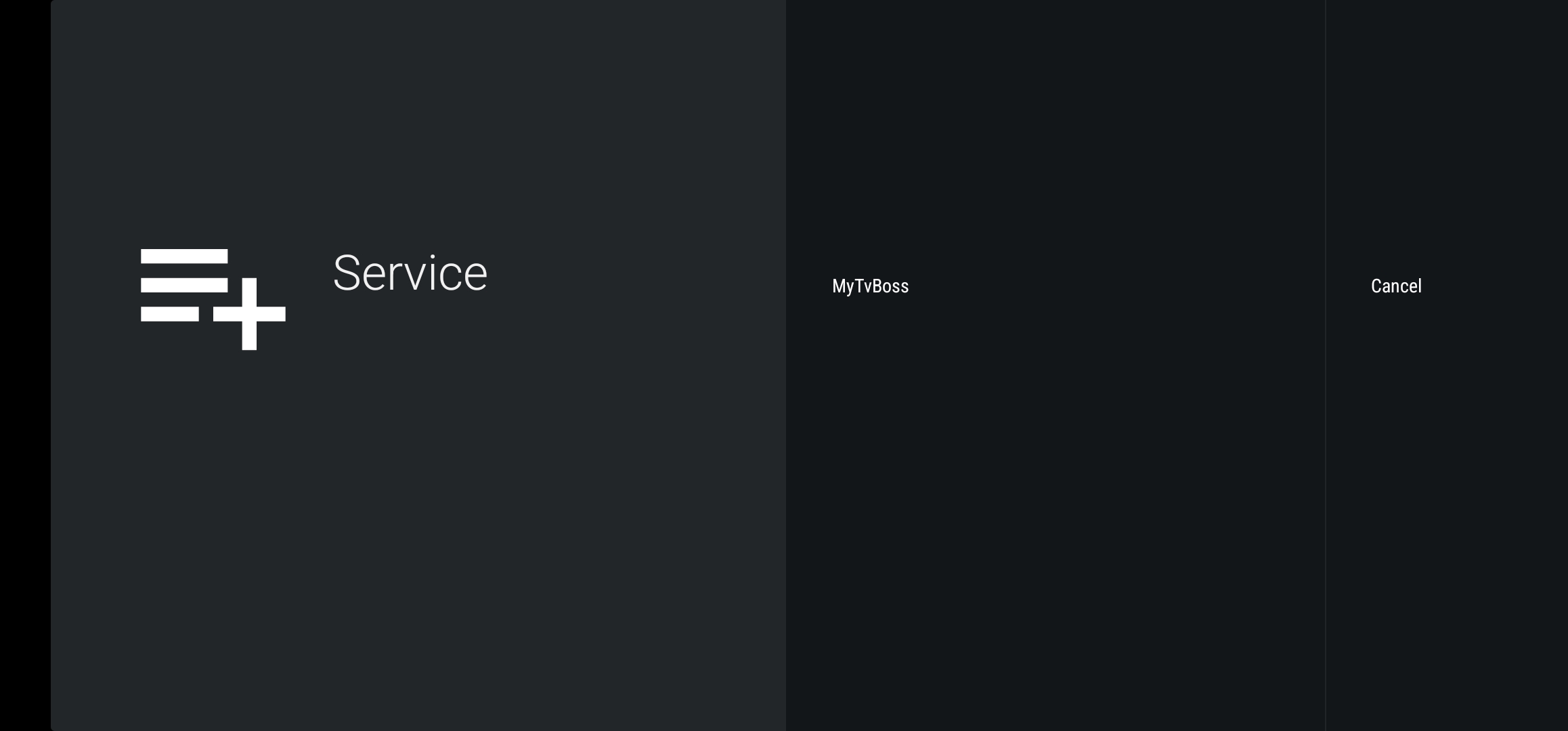
24. Select MyTvBoss.
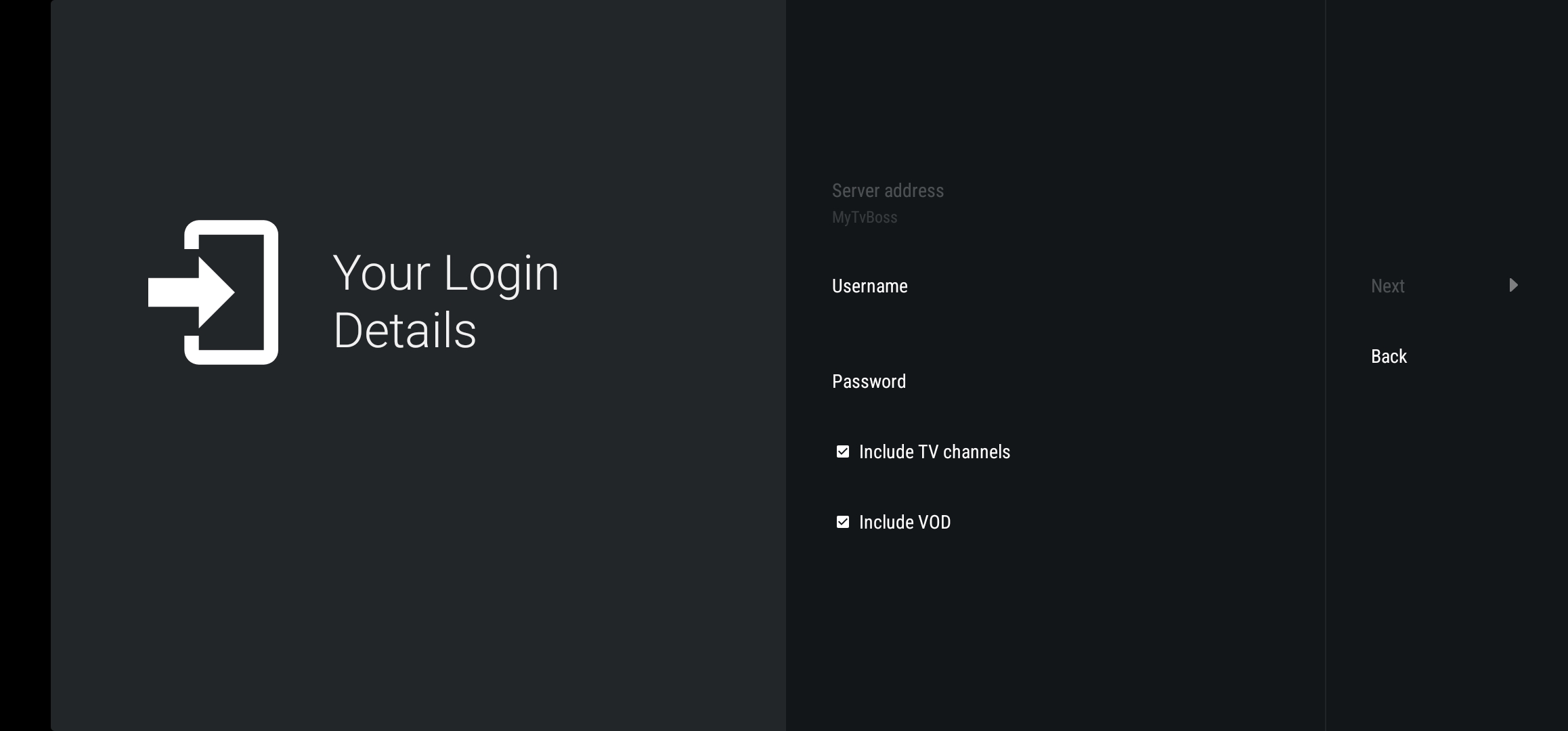
25. Enter your numerical username and password, leave both boxes checked, and click Next. (Your credentials were emailed with subject line "subscription info" — check spam if you don't see it.)
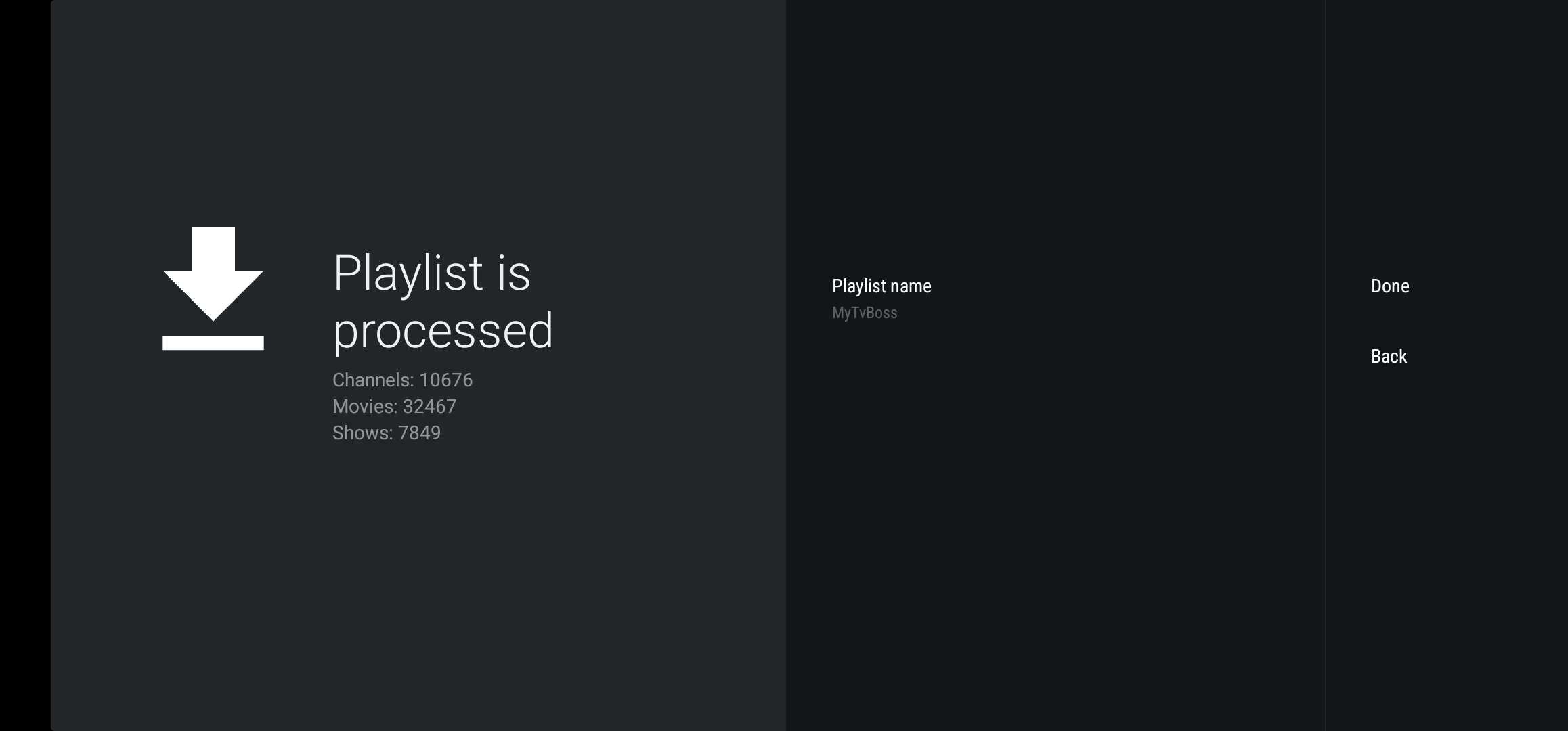
26. Once processing is finished, click Done.
27. Enjoy!